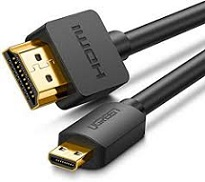
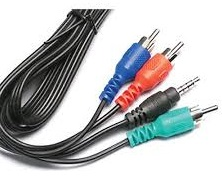
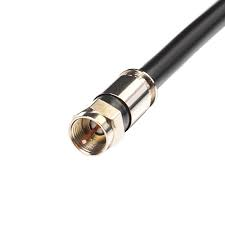
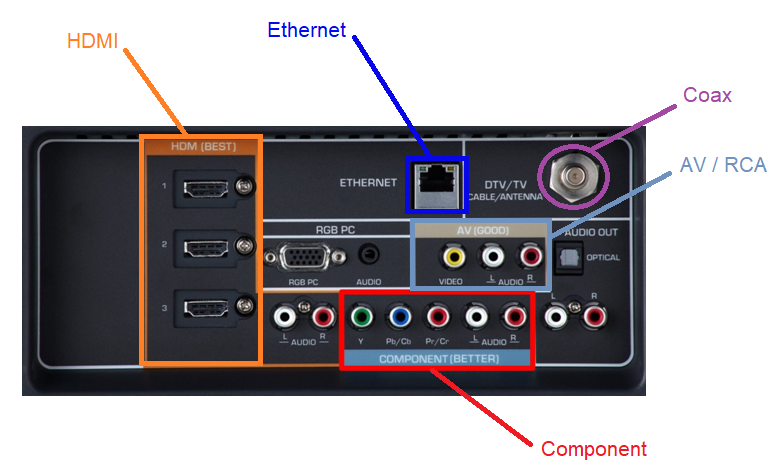
This can be caused by a few things. The most common is your TV isn’t on the correct input. Citizens Connected set-top boxes (STB) are usually connected to your TV via a HDMI cable. Below are a few of the most common issues and how to fix them.
Reason 1: Wrong Input
Verify which type of cable connects your set-top box to your TV.
With your TV on, get the remote that came with your TV (LG remote, Samsung, Toshiba, etc.)
Locate the “input” or “source” button and press one time to bring up the on-screen input menu
Select the correct source for your cable connection
Reason 2: Bad Cable or Bad Port
If your set-top box is connected via HDMI cable, try moving the cable to a different HDMI port on your TV if it has more than one.
Change the input on the TV to the new HDMI input i.e. HDMI 2
If you still have issues, try a different HDMI cable
Reason 3: Your set-top box does not have power
Check to see if you have a light on the front of your set-top box.
Verify that it is plugged into power.
Message on screen that reads "Press OK to watch TV"
Your set-top box is turned off. Using your Citizens remote, press the STB button on the top right of the remote, then press the "Power" or "OK" button.
I can't access my on-screen guide
Your remote is not in the correct mode. In order for you to control your set-top box from Citizens Connected, your remote must be in STB mode. To do this, press the "STB" button on the top of your remote.